FAQ of Magic DVD Ripper
Questions:
- Why is my registration code invalid?
- I lost my registration code. What can I do?
- How can I upgrade my software?
- How can I download decryption files for protected DVDs to my PC?
- How to transfer .mp4 file to your iPod?
- How to transfer .mp4 file to your PSP?
- How to preview a title and select a clip to rip?
- I got a read error message, what can I do?
- How can I keep 5.1 AC3 audio track and playback it?
- How to select a DVD on hard drive as source?
- How to select the destination?
- How can I find the display for the free space and required space on the destination drive?
- Any quick Look Videos?
- I have more questions, what should I do?
Answers:
Q: Why is my registration code invalid?
A: First, please ensure you have installed Magic DVD Ripper but not our another product Magic DVD Copier.
Secondly, you have to enter your user name and registration code exactly as what you got. I strongly recommend you copy/paste(Ctrl+C/Ctrl+V) them.
Q: I lost my registration code. What can I do?
A: Feel free to contact us by sending an email to [email protected]. If you've changed your email address, please tell us your email address you used when you purchased.
Q: How can I upgrade my software?
A: You can download the latest version from http://www.magicdvdripper.com/download.htm. And then you can simply update it by installing the latest version over the older one. Please close the old version when installing. And doing this will retain your registration information and configuration.
Q: How can I download decryption files for protected DVDs to my PC?
A: Since version 5.5.2, our program can automatically download the decryption file from our server when you ripping the relevant DVD. You just need to make sure your computer is connected to the internet properly. And also we suggest you add MagicDVDRipper.exe to the white list of your anti-virus software, in order to make the download process running successfully.
As for the users who are stilling running the old version, to copy new-copy protection DVD, we suggest you upgrade to the latest version.
Q: How to transfer .mp4 file to your iPod?
A: You need to use your iTunes to transfer the .mp4 file that our software generated to your iPod. You can read the help of iTunes to learn how to do or follow the steps below.
Step 1: Find the .mp4 file which is created by our program and drag it into your iTunes library, or select "Add File to Library" from the "File" menu and select the .mp4 file.
Step 2: Click "File" -> "Update iPod" to load the .mp4 file to your iPod.
Q: How to transfer .mp4 file to your PSP?
A: Please connect your PSP to your computer. And then copy the .mp4 file and the .thm file to the folder '\MP_ROOT\100MNV01' on your PSP.
Please note: If you use MPEG4 video codec, you will get a file named as M4V*****.mp4 (* is a digital), and it must be transferred to the folder "\MP_ROOT\100MNV01". If you use H.264 video codec, you will get a file named as MAQ*****.mp4, and it must be put under the "\MP_ROOT\100ANV01" folder. If that folder doesn't exist, please create it first.
Q: How to preview a title and select a clip to rip?
A: Please click the  button, then the Preview window will appear. In the window, you can click the Play button to preview the title. You can also drag the slider to a particular location.
If you need select a clip to rip, please first drag the slider to the start point, click the  button. Then drag the slider to the end point, click the
  button. Last, please click the Accept button to confirm your choice.
Q: I got a read error message, what can I do?
A: The read error message means the DVD has been scratched or there is a new protection. First, please ensure you have installed the latest version of our software. You can visit http://www.magicdvdripper.com/download.htm to check if there is a new version released.
Secondly, please check if the surface of the DVD is clean and scratch-less. If the DVD has been scratched slightly, please click "yes" when our program prompts you to ignore read errors. And if possible, you can try to copy it from another DVD drive or computer.
If the DVD is a new released movie and you are sure it hasn't been scratched, it may have a new copy protection. Please choose "Export ifo files ..." from the File menu to export the IFO files of the DVD. Then send the exported file to [email protected]. We'll attempt to fix it as soon as possible.
Q: How can I keep 5.1 AC3 audio track and playback it?
A: Magic DVD Ripper only support 5.1 AC3 audio track in AVI output. Please choose menu "Profiles"->"Profile Editor..."->"AVI"->"Modify" and check "Keep DVD 5.1 AC3 audio track". Then rip your DVD in AVI profile and you'll get 5.1 AC3 audio track in the output file.
If you can't playback 5.1 audio correctly, it seems that you have not installed AC3 decoder or not configurated it correctly. Please first download AC3Filter from here and install it. Then click Windows' menu "Start"->"All Programs"->"AC3Filter"->"AC3Filter Config", and then choose "3/2+SW 5.1 channels" from the "Output format" dropdown list on the "Main" form.
Q: How to select a DVD on hard drive as source?
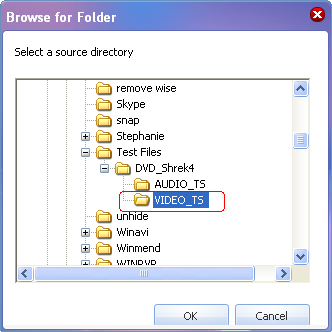
A: Click "From hard disk" from the dropdown list of "Please select the DVD source:" and then select "VIDEO_TS" folder of the DVD on hard disk from the pop-up "Browse for Folder" window. Please see the following images.

Q: How to select the destination?
A: Click "Browser" button beside "Please select the destination:" textbox and then you can choose a drive or a folder on your hard drive as destination. Please see the following image.

Q: How can I find the display for the free space and required space on the destination drive?
A: Put your mouse on the destination textbox. Please see the following image.

Q: Any quick Look Videos?
A: Yes! If you are a newer, here is a quick look video for you: Quick Look Videos
Q: I have more questions, what should I do?
A: Feel free to send your additional questions, bug reports or suggestions to [email protected]. Usually we'll reply to you in 1 business day. If you meet any problem when using our program, please describe your problem in detail. And please choose "Export Log file ..." from the File menu to export the log file of our program. Then send the exported file to [email protected].
Registration Benefits
- A full license to use the software
- FREE technical support via e-mail for lifetime
- 30-Day Money Back Guarantee
Awards and Users reviews
-
This software is excellent and well worth the money spent to buy it. Guys you wont be sorry buying this product to backup your movies. I recommend taking both MagicDVDRipper and Copier as bundle. -- Gerald
-
Excellent product. I am yet to use a DVD ripper so effective and easy to use. -- Anuj Sehgal
-
Excellent program! Other dvd rippers gave me choppy audio and video, but this dvd ripper has always worked perfectly!
-
Magic DVD ripper is great for everything else. Bulletproof in defeating copy protection; good speed on encoding. I've paid for lifetime upgrades and would like to get this working at a higher quality. --- Randy Steck
a professional DVD ripping software available in the market for quite a long time. --- reviews from techulator.com
-